Access Your Homelab Services Without Memorizing IPs and Ports

My homelab keeps growing, and I hate having to remember which IP addresses belong to which machines, or even worse, which ports are used for which services. So it led me to write about my setup for easily communicating with my Linux Containers without having to remember IP addresses (e.g., home-assistant.local), and also to have a nice dashboard listing them all.
TL;DR: To enable discovery via the hostname:
apt install avahi-daemon
systemctl enable --now avahi-daemon
The Dashboard
The first step that really helped me out, regardless of whether you follow my other recommendations about using local domain names or not, is to have a dashboard listing all the machines and services running in my homelab. That way, I only need to remember the dashboard URL, and I can easily access all my services from there.
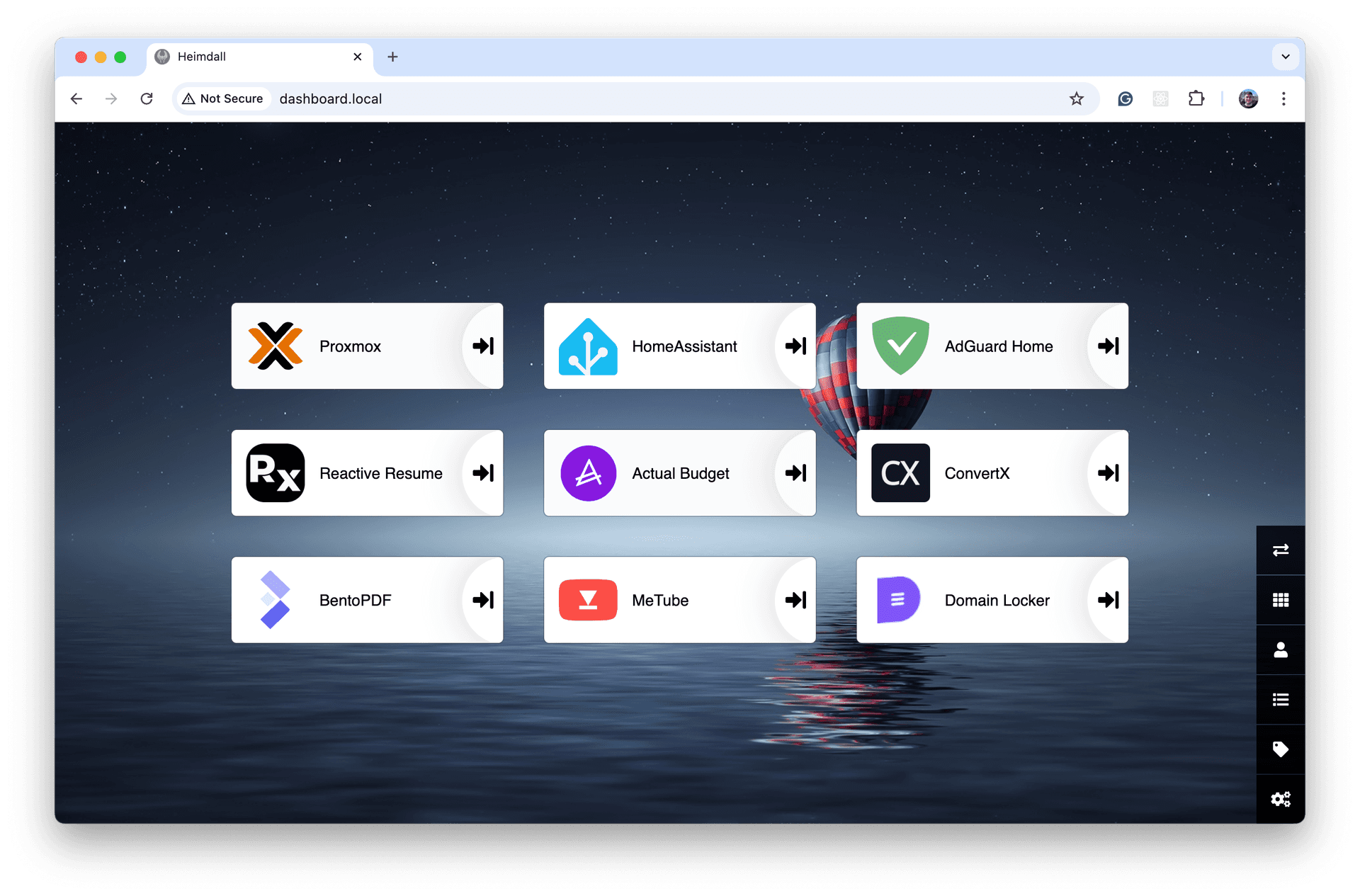
I use Heimdall for that, which is a free and open-source dashboard that can be self-hosted. It allows you to create custom tiles with links to your services and supports authentication if you want to secure access.
If you are using Proxmox, here's the helper script for it.
Use local domain names instead of IP addresses
The dashboard wasn't enough for me. I wanted to be able to access my services without having to remember IP addresses (e.g., when configuring services, like my NAS), so I decided to use local domain names instead. For example, instead of accessing Home Assistant at http://192.168.1.100:8123, I can now access it at http://home-assistant.local:8123.
This is also useful because I hate having to configure static IP addresses for my machines, and I don't want to rely on DHCP reservations either. With local domain names, I can just use the default DHCP configuration and still access my services without any issues.
I recently migrated away from Eero devices to Ubiquiti UniFi, and I was pleasantly surprised to find out that UniFi supports local domain names out of the box, so I didn't even have to do any additional configuration to make it work. Not only that, my subnet is now 192.168.1.x instead of 192.168.4.x, because I was already using local domain names everywhere, I didn't have to update static IP addresses or even rebuild my DHCP reservations, it just worked! Regardless of the network, if it supports local domain names, you are all set.
Setup
I've been using Proxmox LXC with Debian for most of my machines, so all I have to do is to ensure there's a hostname configured for each machine, and it will be accessible via http://<hostname>.local.
For example, my Home Assistant instance is running in a Proxmox LXC with the hostname home-assistant, so I can access it at http://home-assistant.local:8123.
Hostname
You can confirm that the hostname is configured by running the following command:
hostnamectl
Or by checking the following file:
cat /etc/hostname
Discovery
Then, once we have a hostname configured, it's usually not enough, we have to configure the discovery. For that, we can rely on avahi-daemon, a Linux service implementing Apple's Zeroconf (also known as Bonjour) architecture (mDNS/DNS-SD) to allow automatic network discovery of devices and services without manual configuration. It enables features like browsing local network printers, file sharing, and accessing devices via <hostname>.local.
To install it, we can run the following command:
apt install avahi-daemon
Then enable it:
systemctl enable --now avahi-daemon
Bonus: Change the default port of web services to 80
You probably know me by now, but it was still not enough for me. Most of my services are web services, and I hate having to remember the port numbers for each service (e.g., http://some-app.local:3405), so I decided to change the default port of all my web services to 80, that way I can just access them via http://some-app.local.
It won't explain here in detail how to do it because it's case by case, but in general, all I have to do is check whether the service exposes an environment variable for the port (e.g., PORT), and if it does, I can just set it to 80. If it doesn't, I can usually find a configuration file where I can change the port number.
If you rely on HTTPS rather than HTTP, you should change the default port to 443 instead of 80, and make sure to configure your services accordingly. Also, if you are using a reverse proxy (e.g., Nginx), you can keep the default ports for your services and just configure the reverse proxy to listen on port 80 and forward the requests to the correct ports based on the hostname.
If you are also using Proxmox Helper Scripts, check the installation script, it usually describes where to change the port number.
Thanks for reading to the end!
I hope it helps declutter your homelab and makes it easier to access your services. If you have any questions or suggestions, feel free to comment below.